

BERNAS.ID – Learn how to secure your router login at 192.168.0.1 with essential tips and best practices to protect your home network from unauthorized access.
Secure Your Router Login at 192.168.0.1: A Guide
Securing your router login at 192.168.0.1 is crucial for safeguarding your home network. This IP address is commonly used by routers from manufacturers such as Huawei, Linksys, D-Link, Asus, Netgear, and TP-Link. Leaving your router’s default settings unchanged, including the 192.168.0.1 username and password, can expose your network to potential security threats.
Baca Juga : Daftar Router Terbaik untuk Usaha Kecil di 2024
Hackers can easily gain unauthorized access, compromise your data, and misuse your bandwidth. This guide will walk you through the necessary steps to secure your router login and enhance your network’s security.
Why is Router Security Important?
Impact of Unauthorized Access
Unauthorized access to your router can have severe repercussions. A compromised router allows hackers to monitor your internet activity, steal sensitive information, and even control your connected devices. This can lead to identity theft, financial loss, and unauthorized access to private communications.
Common Consequences of Poor Security
Poor router security can result in several negative outcomes. Hackers can use your network to conduct illegal activities, leading to potential legal consequences for you. Additionally, they can flood your network with malware, affecting the performance of your devices and causing significant disruptions. Ensuring robust router security measures helps prevent these issues, keeping your devices and data safe from malicious actors.
Common Vulnerabilities of Router Logins
Default Credentials
Many routers come with default usernames and passwords, creating significant security vulnerabilities. These credentials are often easy to find in user manuals or on the device itself, making them targets for hackers. Cybercriminals use automated tools to scan for routers that still use these factory settings, allowing for unauthorized access with little effort. Once inside, attackers can change configurations and compromise other devices on the network.
Unfortunately, many users overlook the importance of changing these credentials. Modifying these settings is a crucial step in enhancing network security. Users should create strong, unique passwords and consider changing the default username to further deter unauthorized access.
Unpatched Firmware
Outdated router firmware presents serious security risks. Manufacturers regularly release updates to address vulnerabilities, and neglecting these updates leaves devices exposed. Hackers actively seek outdated routers, exploiting known weaknesses to gain access. Regularly checking for and applying firmware updates is essential for maintaining a secure network.
Baca Juga : Ada 211 Spot WiFi Publik Gratis di Kota Jogja
Most routers provide options to check for updates in the administrative interface, and enabling automatic updates simplifies the process. By prioritizing firmware updates, users can significantly enhance their network security and protect personal information.
How to Change the Default Username and Password?
Accessing the Router Settings
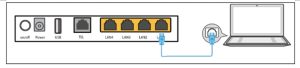
To change your router’s default credentials, start by opening a web browser on a connected device. Enter the router’s IP address, typically 192.168.0.1 or 192.168.1.1, in the address bar and press Enter. This will take you to the router’s login page.
Next, enter the default login credentials, which can usually be found in the router’s manual or on a sticker on the device. Common defaults include “admin” for the username and “password” for the password. After logging in, navigate to the settings menu to update the username and password with strong, unique credentials.
Steps to Update Credentials
First, log in to the admin panel. Using your browser, navigate to 192.168.0.1 and log in with the default username and password. Second, navigate to settings. Once logged in, locate the settings or administration section.
Third, change username and password. Find the option to change the default username and password. Enter your new credentials and save the settings. Fourth, reboot the router. Restart the router to apply the changes. This ensures that the new credentials take effect, providing improved security.
Additional Security Measures for Your Router
Enabling WPA3 Encryption
WPA3 is the latest Wi-Fi security protocol, offering enhanced protection for your network. To enable it, access your router’s settings by entering 192.168.0.1 in a web browser. Log in using your credentials, then navigate to the wireless security section. In the encryption options, select WPA3.
Enabling this advanced encryption standard significantly strengthens your network security, making it much harder for unauthorized users to gain access. By implementing WPA3, you not only protect your personal information but also improve overall network performance, ensuring a safer online experience for all connected devices.
Setting Up a Guest Network
A guest network allows you to separate your main network from guest users, enhancing overall security. To set up a guest network:
1. Access Router Settings: Log in to 192.168.0.1 with your credentials.
2. Find Guest Network Settings: Locate the guest network option within the wireless settings menu.
3. Configure Guest Network: Enable the guest network and customize the settings, such as naming the network and setting a unique password.
4. Apply and Save: Save the changes and restart the router if necessary. Creating a guest network helps protect your primary network by restricting guest access to your main devices and data.
Conclusion
Securing your router login at 192.168.0.1 is vital for protecting your network from unauthorized access and potential cyber threats. By changing default credentials, regularly updating firmware, enabling WPA3 encryption, and setting up a guest network, you can significantly enhance your router’s security. These steps help ensure that your personal data remains confidential and your devices operate smoothly without external interference.
Remember, the first line of defense for your home network starts with a secured router. Regularly review and update your router’s security settings to keep up with evolving threats. With a few proactive measures, you can create a safer online environment for you and your family. (adv)
