


BERNAS.ID – Learn how to access your device securely using its IP address. Follow our guide for easy steps, and troubleshooting tips, and ensure a smooth connection.
How to Log In to Your Device Using Its IP Address
Using an IP address to access your device is a practical skill for managing network configurations, troubleshooting, or performing remote tasks. An IP address acts as a unique identifier for devices within a network, allowing you to connect directly to the device’s interface.
This guide will provide clear steps on how to log in to your device via its IP address, including common methods for different devices and solutions to potential issues. Whether you’re dealing with a home router, a computer, or a mobile device, understanding this process ensures you can manage your network with confidence.
How Does an IP Address Work?
An IP address serves as the digital address of a device within a network, enabling communication between devices. For instance, 192.168.0.1 is a typical default IP address for routers. IP addresses are categorized into IPv4 and IPv6, with IPv4 being the more commonly used format, comprising four sets of numbers.
Baca Juga : Implementasi Teknologi 6G dalam Mendukung Internet of Things (IoT)
Each IP address uniquely identifies a device, making it possible to access the device’s settings through a web browser. This direct access is crucial for tasks like adjusting network configurations or managing connected devices within the network.
How Can You Find Your Device’s IP Address?
Finding the IP Address on Windows Devices
To locate your IP address on a Windows device, start by accessing the Command Prompt. Type “cmd” in the search bar and press Enter to open it. Once open, enter the command “ipconfig” and press Enter.
This command will display various network details, including your device’s IPv4 address, which is often something like “192.168.x.x.”
This IP address is essential for accessing your router’s interface or any other networked device. By understanding how to find this address, you can easily manage or troubleshoot your network settings.
How to Find the IP Address on Mobile Devices
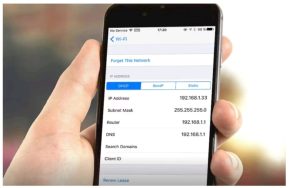
Finding the IP address on a mobile device is straightforward. For iPhones, go to “Settings” > “Wi-Fi,” tap on the information icon next to the connected network, and you’ll see your IP address under “IPV4 Address.”
On Android devices, navigate to “Settings” > “Network & internet” > “Wi-Fi,” and select the connected network to view your IP address. This address, usually in the format “192.168.x.x,” is vital for network management or accessing your router’s settings via a mobile browser.
How Do You Log In to Your Device Using Its IP Address?
Steps to Access a Router or Modem via IP Address
To access your router or modem using its IP address open a web browser and type the IP address into the address bar, then press Enter. This action should prompt a login screen, where you’ll need to enter the default username and password, often provided by your ISP or listed on the device itself.
Once logged in, you can configure various settings, including network security, Wi-Fi passwords, and parental controls. If access is denied, double-check the IP address and login credentials, or consider resetting the device to factory settings.
Logging Into a Computer or Server Using an IP Address
Logging into a computer or server via its IP address is commonly done using Remote Desktop Protocol (RDP) for Windows or Secure Shell (SSH) for Linux and macOS. For RDP, search for “Remote Desktop” on your Windows device and input the target computer’s IP address.
For SSH, open a terminal on your device and type “ssh [username]@[IP address],” then press Enter. These methods allow you to remotely control the device as if you were physically present. Ensure that remote access is enabled and that you have the correct login details to successfully connect.
Troubleshooting Common Login Issues
If you’re having trouble logging in to your device via its IP address ensure that you’re using the correct address and that your device is connected to the same network.
Restart your router or modem if you’re unable to connect, as this can resolve temporary glitches. Verify that your firewall isn’t blocking the connection, and consider using a different web browser or device to rule out software issues.
Baca Juga : Fungsi dan Penggunaan AI dalam Cybersecurity
If you continue to experience problems, updating your network drivers or resetting the router to its factory settings might help.
What Should You Do If You Can’t Access Your Device via IP Address?
Common Reasons for Access Issues
Several issues could prevent you from accessing your device via its IP address. One common problem is that the device and the computer might not be on the same network, which is crucial for communication. Incorrect IP address entry is another frequent issue—double-check that you’re using the right one. Additionally, network configurations, firewall settings, or outdated firmware might be blocking access. Identifying the root cause is key to resolving these access issues efficiently.
Steps to Resolve Connectivity Problems
To troubleshoot connectivity issues, first, ensure that your device and computer are on the same network. Next, recheck the IP address you’re using for access; it should be accurate and correctly formatted. Restart your router or modem to clear temporary glitches.
If the issue persists, disable your firewall temporarily to see if it’s the source of the problem. Additionally, trying to access the device from a different browser or updating your device’s firmware may resolve the problem.
When to Seek Professional Help
If troubleshooting doesn’t resolve the issue, it might be time to seek professional assistance. Persistent access problems could indicate more serious issues with your network hardware or configuration that require expert intervention. Contacting your Internet Service Provider (ISP) or a professional IT service can help diagnose and fix the issue. They can also offer advice on securing your network to prevent future problems, ensuring your device remains accessible and your network is secure.
Conclusion
Understanding how to log in to your device using its IP address is crucial for effective network management. Whether you’re configuring a router, accessing a computer remotely, or resolving connectivity issues, knowing how to use IP addresses can simplify these tasks.
This guide provides the essential steps and troubleshooting tips to help you navigate potential challenges. By following these instructions, you can ensure a smooth and secure connection to your devices, empowering you to manage your network with confidence. (adv)
